How to see Asana tasks in Outlook or Google Calendar, and keep the dates in sync
Short answer
Asana can publish a project as a calendar link, but it only goes one way and calendar apps refresh it on their own schedule. Connect Asana to a Kapcal board instead: task dates change both ways, and from there you send them to Outlook or Google Calendar with a calendar link, or, on the Pro plan, link a task to a calendar event so moving either one moves both.
Why Asana’s calendar link isn’t enough
Asana can publish a project, or your own tasks, as a link that Outlook or Google Calendar subscribes to. It’s quick to set up, and for glancing at due dates it does the job. Its limits show as soon as a date moves:
- Read-only. Dragging a task in Outlook does nothing; you change it in Asana.
- Late. Google Calendar and Outlook check subscribed links every few hours, sometimes longer.
- Tasks alone. The meetings, reviews and bookings in your calendar don’t know which task they wait for, so a late task doesn’t move them.
Step by step
Connect Asana to a board
In Kapcal, open Tools → Calendar syncing → Asana and paste a personal access token (in Asana: Settings → Apps → Developer apps). Tick the projects to follow. Each Asana project becomes a project on the board, and its sections become categories.
Let dates go back to Asana
Leave Send changes to Asana on. Moving a task on the calendar, ticking it done or giving it times then changes it in Asana too. Asana keeps its titles, owners and notes; Kapcal never overwrites them.
Send everything to your calendar app
To see the board in Outlook, Google or Apple Calendar, open Tools → Calendar syncing → Calendar link, choose everything or only what’s shown, and use the Outlook or Google button. It’s one way: your calendar app shows the dates, and you change them in Kapcal or Asana.
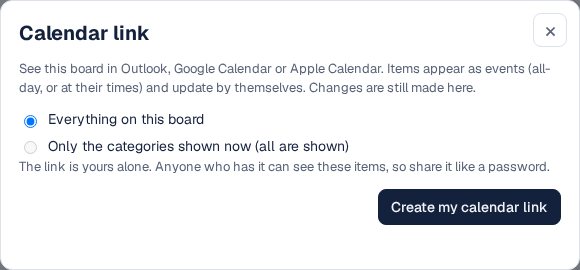
Your own calendar link, for Outlook, Google or Apple Calendar. Link the dates that matter to calendar events
On the Pro plan, connect your Outlook or Google calendar to the same board, add the event in its category, then link it to the task: select the task and drag its link handle onto the event. Move either one, in Kapcal, in Asana or in your calendar, and at the next sync the other follows, in both places.

Who changes what
Changed in Asana only
Title, owner and notes.
Changed on either side
Dates and times, done, and new tasks.
Kapcal’s own
Category, workflow, and Planned or In progress.
Deleting
Delete tasks in Asana and the board follows. Unticking a project takes it off the board and never deletes anything in Asana.
Other ways
Asana’s calendar link
Free and one way, refreshed on your calendar app’s schedule. Good for a glance at due dates.
Asana’s calendar view
Shows a project’s tasks on a calendar inside Asana, without the rest of your team’s calendar.
Automation tools
Tools like Zapier can make a calendar event when a task is created. Keeping later date changes in step takes more steps, and they break quietly.
Questions
Which plan do I need?
Asana sync comes with the Pro plan, which starts with a 14-day free trial. The calendar link works on every plan; the Free plan includes one per organization. See Pricing.
Do task times come through?
Yes. A task with a due time shows at that time; one with a start and a due time shows as a range.
Can I see several Asana projects together?
Yes. Tick as many as you like: each becomes a project on the board with its own colours, and you can show or hide each one.