How to combine several calendars into one master calendar
Short answer
Your calendar app can overlay several calendars, but only you see the result, and calendars added by link are read-only and slow to refresh. Bring them onto one Kapcal board instead: Google Calendar, Outlook and Asana sync both ways, any other calendar comes in by its link, each one lands in its own colour, and the whole team sees the same master calendar.
Why overlaying calendars isn’t enough
Google Calendar, Outlook and Apple Calendar can all show several calendars at once. For one person, that’s a fine start. For a team’s master calendar, it falls short:
- It’s yours alone. Everyone has to add the same calendars themselves, and nobody is sure they see the same thing.
- Mostly read-only. Calendars added by link can’t be changed where you see them, and they refresh hours late.
- No shape. Twenty overlapping calendars in ten colours is a wall, not a plan: you can’t group them by project, save a view for each team, or see what depends on what.
Step by step
Make one board for the master calendar
Each source becomes a category with its own colour. Group categories into projects, one per client, product launch or campaign, so a whole project shows or hides at once.
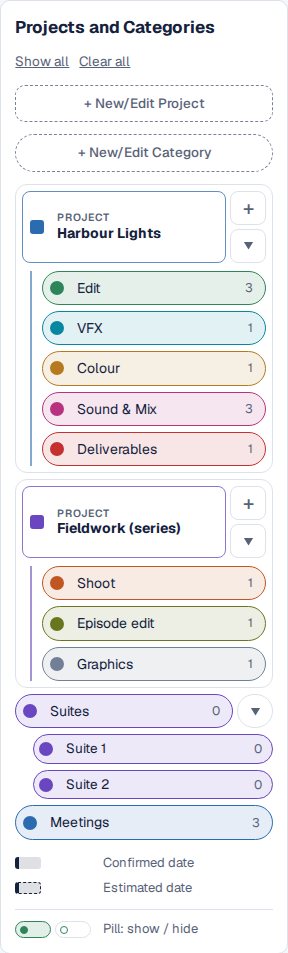
Projects hold categories; categories can hold subcategories. Connect the calendars that change
Under Tools → Calendar syncing, connect Google Calendar, Outlook and Asana. Those sync both ways, on the Pro plan. Each board links one Google calendar, one Outlook calendar and as many Asana projects as you like.
Subscribe to the rest
For any other calendar (a second Google calendar, an iCloud calendar, a venue’s or a supplier’s), paste its private iCal link under Subscribed calendars. Kapcal reads it every 15 minutes, one way.
Bring in the spreadsheets
One-off schedules in Excel or in another calendar’s file come in under Static → CSV or iCal. A category with the same name is reused, so imports land where they belong.
Give everyone their view
Click a category to hide or show it, save a view for each team, and share it: a read-only link for people outside, a calendar link for anyone who’d rather see it in Outlook, Google or Apple Calendar.
One category on its own, then categories switched off and on.

Other ways
Overlay in your calendar app
Free and instant for you; everyone else has to do the same, and linked calendars stay read-only.
One shared calendar everyone writes to
Works when everyone uses the same service and keeps it up to date; it drifts from the calendars people really use.
A spreadsheet
Everyone can edit it, but it doesn’t update from anyone’s calendar, and it’s hard to read as a calendar.
Questions
How many calendars can one board hold?
One Google calendar and one Outlook calendar both ways, as many Asana projects as you like, and as many subscribed calendars as your plan allows: one per organization on Free, as many as you like on paid plans.
Can people outside the team see the master calendar?
Yes. Share a read-only link with the categories they need: it needs no account and always shows the current board. See sharing with clients.
What if the same event comes from two calendars?
It shows twice, once in each calendar’s colour. Link the two and they move together.