When a task slips, how to move every date that depends on it automatically
Short answer
Tell the schedule which tasks depend on which. Link items that always move together, so moving one moves the others by the same number of days; on Kapcal’s Workflow timeline, draw an arrow from a task to what follows it, so a late finish pushes the next task to the next working day, only as far as needed. Lock the deadlines that can’t move: Kapcal warns you instead of pushing them.
Why it’s still done by hand
On most calendars, every event stands alone. When the design runs three days over, someone moves the client review, then the build, then testing, then the launch and everything after it, and hopes they didn’t miss one. Spreadsheets can do it with formulas, until someone types over a formula.
A schedule that moves by itself needs two things a calendar doesn’t know: which dates depend on which, and which ones must never move.
Step by step
Link items that move together
On the calendar, select an item: a small link handle appears inside each end of its bar. Drag a handle onto another item. Moving either one now moves both by the same number of days, earlier or later.
An item linked to another, then both moved together. Draw arrows for what must follow
In the Workflow tab, click a task and drag the handle inside its end onto the task that follows. When the first ends later, what follows moves to the next working day after it, only as far as it needs to. Moving earlier never pulls anything back, so spare time isn’t lost. In project-management terms, each arrow is a finish-to-start dependency.
A task stretched on the timeline: everything after it moves along until a locked delivery date stops it. Lock the deadlines
Lock a date that can’t move (the padlock in Details), or a whole category. If work runs into it, Kapcal leaves it where it is, turns the arrow red and tells you, with Undo.
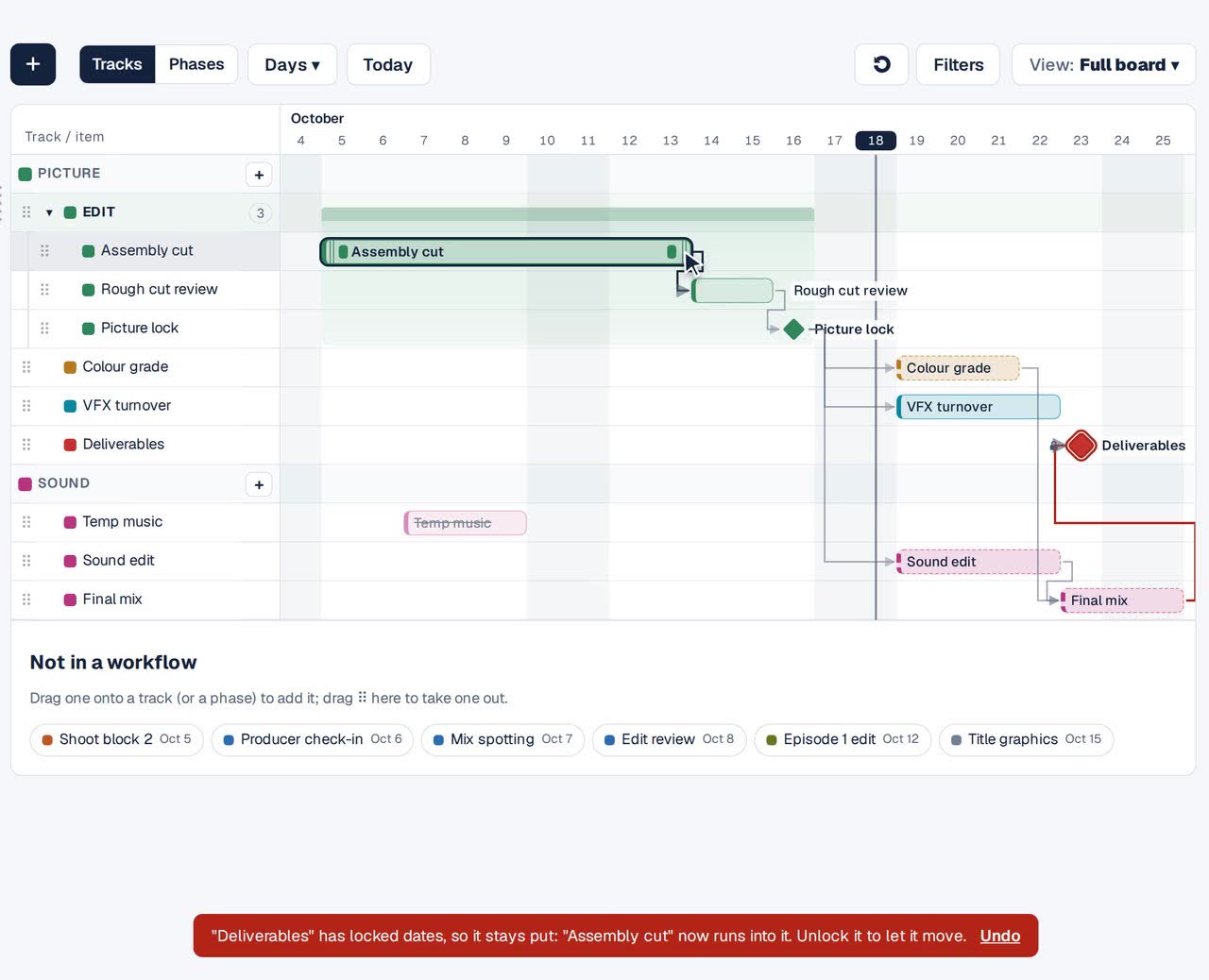
A locked delivery date holds; the mix running into it turns red. See what sets the end date
Days ▾ → Critical path outlines the chain that decides your end date; stripes show the float: how many working days everything else can slip.
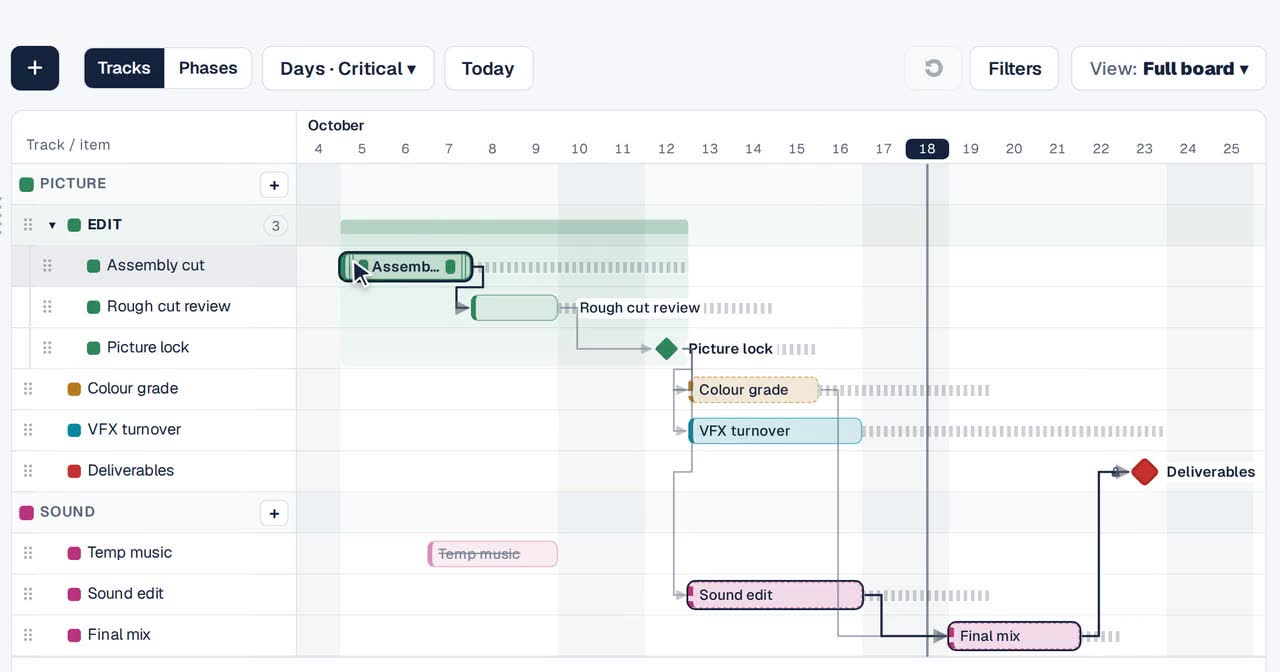
The critical path, outlined; stripes show spare working days. Undo any move
Every move, arrow and lock can be undone, one step at a time, with Ctrl+Z (⌘Z on a Mac) or the Undo button beside Filters.


Link or arrow?
Link
Moves items together by the same amount, both ways, wherever the move is made: on the board, or in Google Calendar, Outlook or Asana. For things that travel as a pair: a session and its prep, an event and its twin in another calendar.
Arrow
Only pushes what comes after, only when it has to, in working days. For a sequence of work: design, then build, then test.
Lock
Never moves, and says so when something runs into it. For launch dates, client deadlines, event days.
Other ways
Spreadsheet formulas
Start = previous end + 1 working day does it, until a formula is typed over or a row is inserted in the wrong place.
A Gantt chart tool
Dependencies are what they’re for; they usually live apart from the calendar your team actually checks.
Move by hand
Fine for two dates. With ten, one gets missed.
Questions
Does moving an item earlier pull the rest back?
Not with arrows: the spare time stays. With a link, yes: linked items always move by the same amount.
Which kind of dependency is an arrow?
Finish to start: what follows starts no earlier than the next working day after the one before it ends. For two items that should always move by the same amount, use a link instead.
What counts as a working day?
Monday to Friday. Arrows push to the next working day.
Do arrows work on the calendar too?
Yes. Move an item on the calendar, in the agenda or in Edit item, and what follows it is pushed the same way. You draw and see arrows on the Workflow timeline.
What if a date is moved in Google Calendar or Outlook?
Linked items follow at the next sync. Arrows apply to moves made in Kapcal; the next move made there catches up.