How to manage multiple projects in one calendar without the clutter
Short answer
Keep every project on one board, each with its own categories and colours, then decide what you see: click a project or a category to show or hide it, filter by owner, status or dates, and save a view for each team. Everyone works from the same dates, and each person sees only what they need.
Why one calendar per project, or one for everything, both fail
Teams running several projects at once end up with one of two problems. One calendar per project means checking five calendars to see whether next Tuesday is free. One calendar for everything turns into a wall of colour where nobody finds their own dates.
What works is both at once: one place for every date, so clashes show, and an easy way to narrow it down to the project, the team or the week you’re working on.
Step by step
A project for each client, launch or campaign
On one board, make a project for each piece of work and put its categories inside: Design, Build, Reviews… A category can hold subcategories, like Rooms → Room 1 and Room 2.
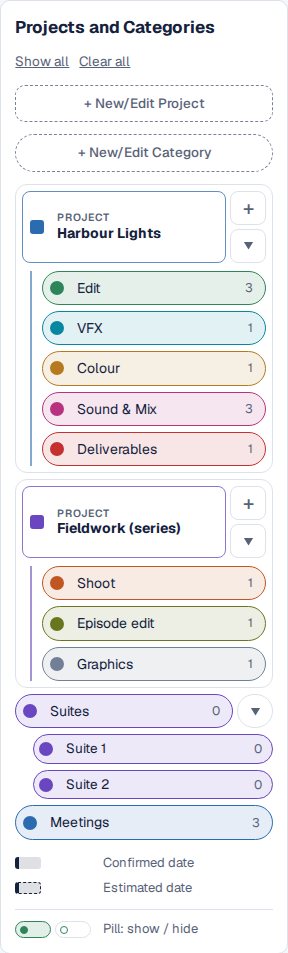
Two projects on one board, each with its categories. Colour by kind of work
Give each kind of work a colour and keep it from project to project, so Reviews is always blue. A glance then tells you what kind of week it is.
Show and hide with a click
Click a project to hide all of it; click again and the categories you had on come back. Click a category to hide just that one. Clear all and Show all sit at the top of the list.
One category on its own, then categories switched off and on. Filter and search
Filters narrow the board by dates, owner and status, with Flagged only and Hide finished items; search finds any title, owner or note.
The board filtered by owner, status and dates, then searched. Save a view for each team
Set the board up for the design team, save it as a view, and give it to them: they open the board that way. A view changes only what you see; the dates are the same for everyone.
Start the next project from the last one
Duplicate a project, with or without its dates, and rename it.

Other ways
One calendar per project
Tidy, but clashes between projects stay hidden until someone double-books a room.
Colour-coding one shared calendar
Works for a handful of projects; then the colours run out, and nobody can hide what they don’t need.
A project management tool
Strong on tasks, assignments and status; a month of meetings, bookings and deadlines across every project is harder to read there. Kapcal can sit beside it: Asana syncs both ways.
Questions
Is there a limit on projects?
A board holds up to 300 categories, grouped in as many projects as you need. An organization can have several boards.
Do hidden categories hide for everyone?
No. Showing, hiding and filters change only your own view.
Can I see projects as a timeline?
Yes. The Workflow tab shows the same items as a Gantt-style timeline, with phases and dependencies. See Workflow.
Does it replace our project management tool?
It doesn’t have to. Kapcal is the shared calendar and timeline: tasks can stay in Asana, which syncs both ways, and other tools can send their dates in with a calendar link or a spreadsheet.