How to lock confirmed dates so nobody moves them by mistake
Short answer
Lock the dates that are agreed: their dates can’t be dragged, changed or pushed along by a chain of changes, and only the person who locked it, or an administrator, can unlock it. Lock a whole category for things like room bookings, launch dates or event days, and mark dates that aren’t confirmed yet as estimated, so everyone can tell the two apart.
Why confirmed dates get moved anyway
On a shared calendar, every date looks equally movable. Someone drags the wrong bar, a linked change carries the delivery date along with it, or a well-meant tidy-up shifts a booking the client already confirmed. Nobody notices until the day.
What helps is a visible difference between “agreed, don’t touch” and “our best guess for now”, enforced by the calendar rather than by memory.
Step by step
Lock an item’s dates
Select the item and click the padlock in Details, or tick Lock dates in Edit item. The bar shows a padlock, and Details says who locked it.
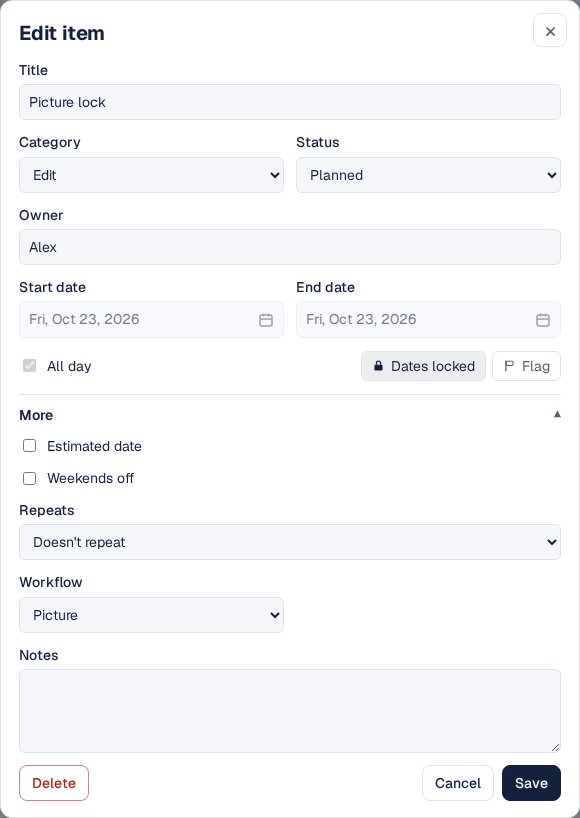
Lock dates, in Edit item. Lock a whole category
Right-click a category and choose Lock dates. Every item in it, its subcategories included, stays put, and so do items added to it later.
Mark what isn’t confirmed
For a date that’s still a guess, tick Estimated in Edit item. It shows dashed until someone firms it up, and then it can be locked.
Let chains work around locks
Linked items and Workflow arrows leave locked dates where they are. When work runs into a locked deadline, its arrow turns red and Kapcal says so, with Undo.
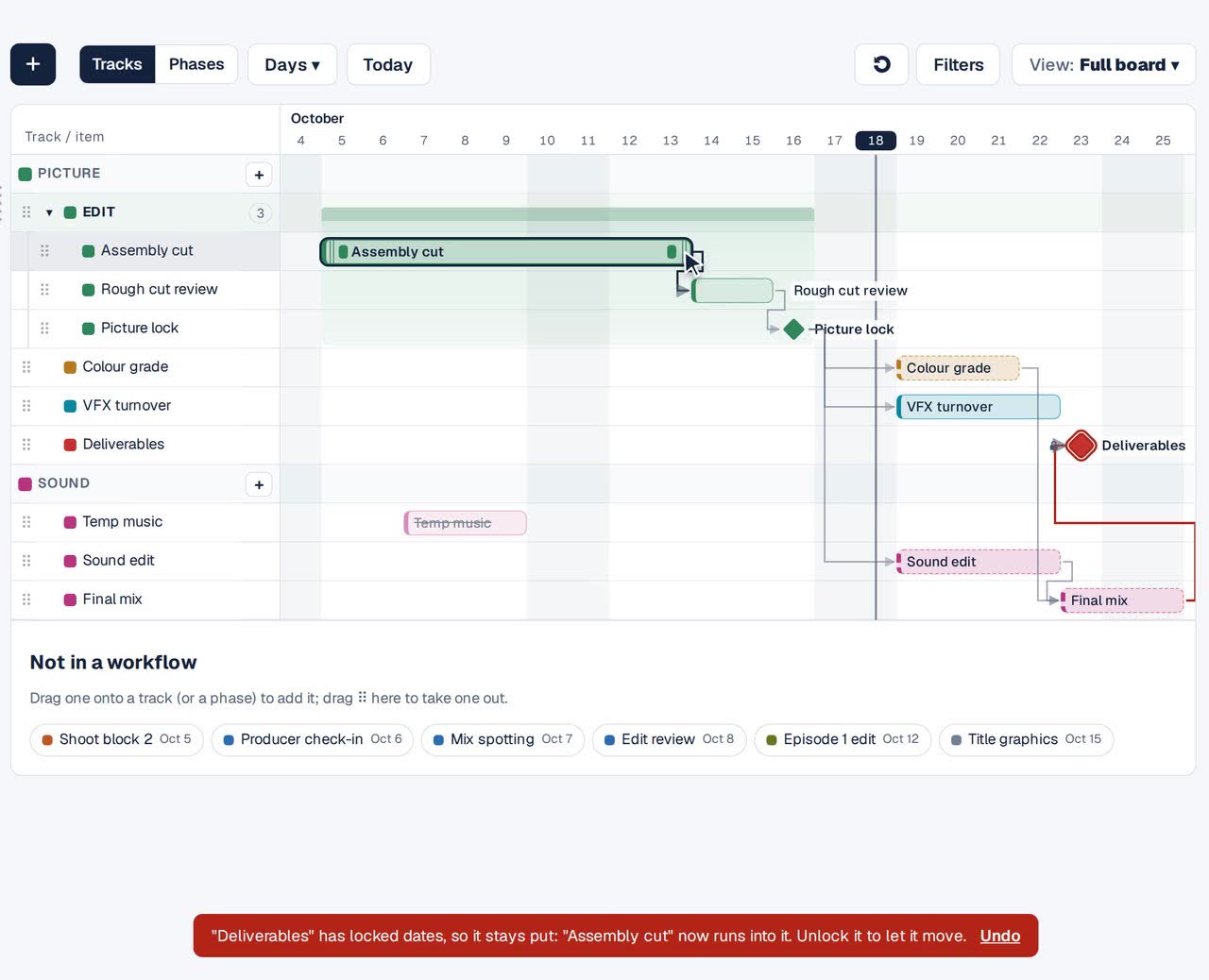
A locked delivery date holds; the mix running into it turns red. Unlock when plans change
The person who locked a date, or a board administrator, clicks the padlock again. Everyone else sees who locked it and can ask.


Good to know
Notes and status
Stay editable: a lock covers the dates only.
Items from other calendars
Events from Google Calendar, Outlook or Asana take their dates from there, so they can’t be locked one by one. In a locked category, moves made on the board leave them put; a change made in the service itself still comes through.
Phases
A phase follows what it holds. Lock the items inside, or make the end a locked milestone.
Other ways
Colour or tag confirmed dates
Everyone can see them; nothing stops them being moved.
Read-only calendars
Give most people view access only. Safe, but then they can’t update the work that is theirs to update.
Questions
Who can lock dates?
Anyone who can edit the board. Unlocking takes the person who locked them or a board administrator.
Can a locked item still be done or cancelled?
Yes. Status, notes, owner and flags stay editable; only the dates are locked.
What happens if a linked item moves?
The locked item stays where it is, and the rest of the chain moves.