How to turn a PDF or spreadsheet schedule into calendar dates with Claude or ChatGPT
Short answer
Connect Kapcal to Claude or ChatGPT, attach the PDF, spreadsheet or email, and ask it to put the dates on your board. The assistant reads the document, shows you what it would add and change, and applies it only once you agree; a revised version later updates the same items instead of adding them twice.
Why retyping falls short
Schedules arrive as PDFs, spreadsheets and emails, and someone retypes them into a calendar. It’s slow, it’s where typos creep in, and it starts over with every revision: version 4 of a contractor’s schedule means finding what moved since version 3.
Asking an AI assistant to read the document is the easy part: Claude and ChatGPT read PDFs and spreadsheets well. The hard part is getting the result into your calendar safely: in the right categories, without duplicates, without moving locked dates, and with a way back if it got something wrong.
Step by step
Check your plan
AI assistants come with Kapcal’s Plus and Pro plans; both start with a 14-day free trial.
Connect your assistant
In Claude (claude.ai or the desktop app): Settings → Connectors → Add custom connector, name it Kapcal, give the address https://kapcal.com/mcp, then Connect. Kapcal opens: sign in, pick the board and allow. In ChatGPT, this needs developer mode for now: Settings → Apps & Connectors → Advanced settings. All the ways to connect.
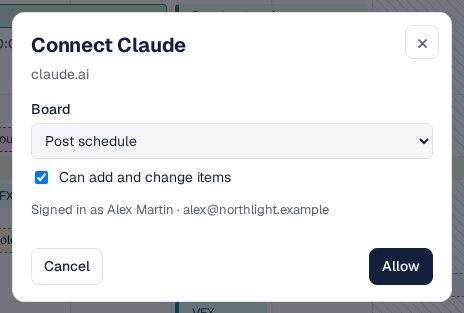
Connecting Claude: pick the board, then Allow. Attach the document and ask
“Put the dates from this schedule on the Office Move board.” The assistant reads the board’s categories first, then the document.
Check the preview, then agree
Before anything changes, the assistant shows what it would add, what it would change and what it would skip, with the reason: a category the board doesn’t have, a locked date, an item another calendar owns. Say yes and it applies; the board shows the new dates with Undo.
A PDF handed to the assistant, the preview, and the new dates on the board with Undo. Send the next version
When version 5 arrives, attach it and say “update the board”. Each item remembers the line it came from, so what moved in the document moves on the board and new lines are added, without duplicates. Every import can be undone for 30 days.

Other ways
Ask the AI for a calendar file
Ask it to turn the PDF into an .ics or CSV file and import that. It works once; a revised schedule adds a second copy of everything, and nothing checks it against your board first.
A spreadsheet in between
Copy the table into Excel or Google Sheets, tidy it, and import it as CSV. Reliable for clean tables, slow for messy PDFs.
Type it in
Fine for ten dates. For a hundred, typos are a given.
Questions
Does Kapcal see the PDF?
No. The document stays with your assistant; Kapcal only receives the list of dates you agreed to.
Can the assistant delete anything?
No. It can add and change items, and undo its own imports, which moves what it added to the Trash.
What if it puts something in the wrong category?
Fix it on the board like any item, or undo the whole import from the message on the board or under User account → AI & API.
Which assistants work?
Claude (on the web, in the desktop app and in Claude Code) and ChatGPT with developer mode. Scripts and tools like Zapier can use a key from your account.